Sign In for the First Time
RoleAnalyst | AdministratorRead5 min
Screen
Access Your Console
/loginWhat it's for
Access your Affinity security console with credentials provided by your administrator.
Before you start
- You need an account created by your administrator.
- On first access, you will receive a confirmation code by email.
Steps
- 1
Open your Affinity instance URL in the browser.
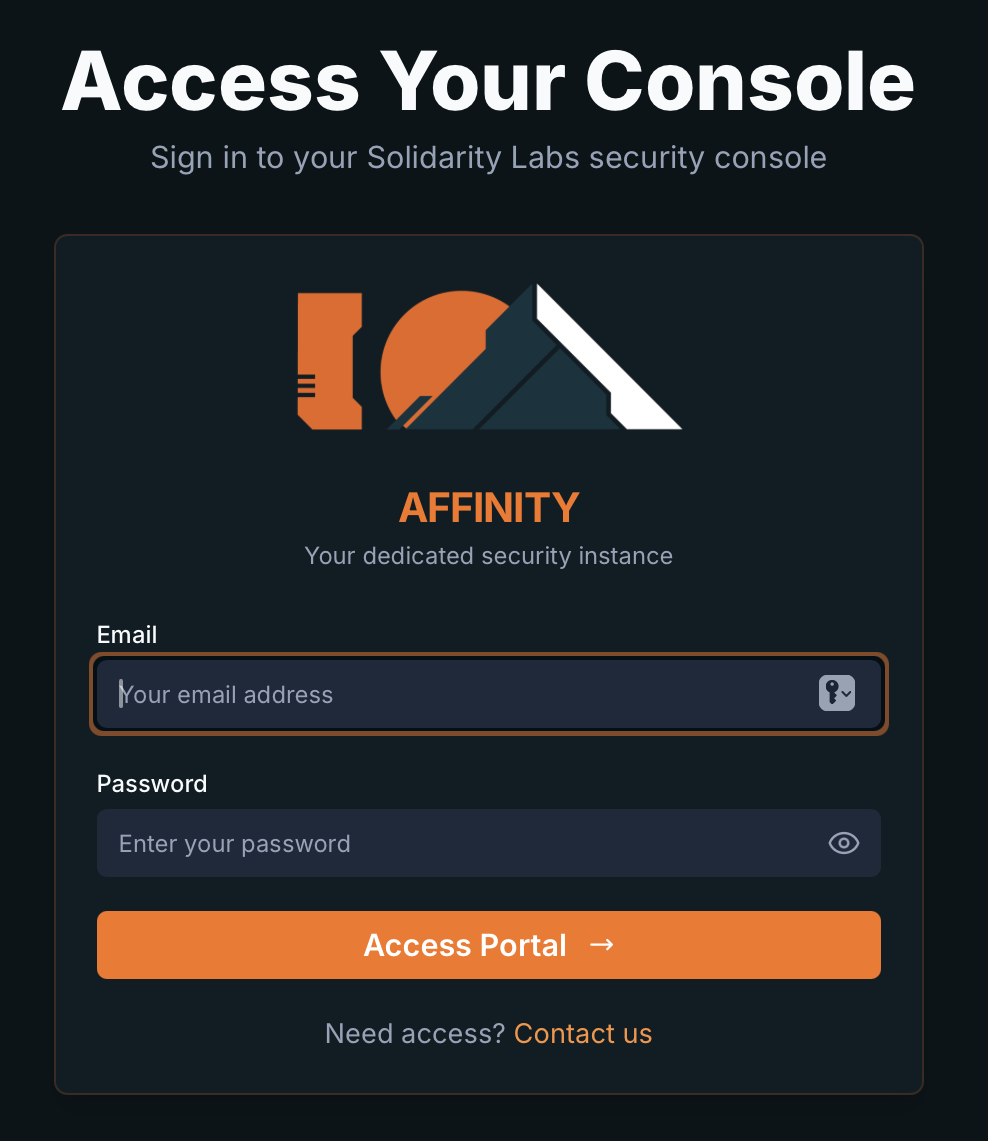
Affinity sign-in screen. - 2
In the Email field, enter your email (placeholder:
Your email address). - 3
In the Password field, enter your password (placeholder:
Enter your password). - 4
Click Access Portal.
- 5
If your account is not confirmed yet, the Confirm Your Account modal appears. Enter the code you received by email in the Confirmation Code field and click Confirm. While it processes, the button shows Confirming....
- 6
You will be redirected to Security Alerts (
/alerts-view).
Expected result
- You see the alerts screen with the sidebar menu loaded.
- Your email appears at the bottom of the sidebar.
Common errors
| Symptom | What to do |
|---|---|
| `Please enter your email and password.` | Complete both fields. |
| Code not received | Check spam; contact support (**Need access? Contact us**). |
| Account not confirmed | Use the **Confirm Your Account** modal. |
Tips
- Your administrator creates accounts from User Management — contact them if you need access (Need access? Contact us on the login screen).