Visual Query Builder
Route: /logs → Query Builder button
Don't want to hand-write SQL? The Query Builder assembles the query for you: pick table, columns, filters, and aggregations, and see the generated **Presto SQL** in real time before running it.
What it's for
Build SQL queries visually and learn what each control generates. Great for discovering columns and for analysts new to SQL.
Steps
- 1
In LOGS, click Query Builder.
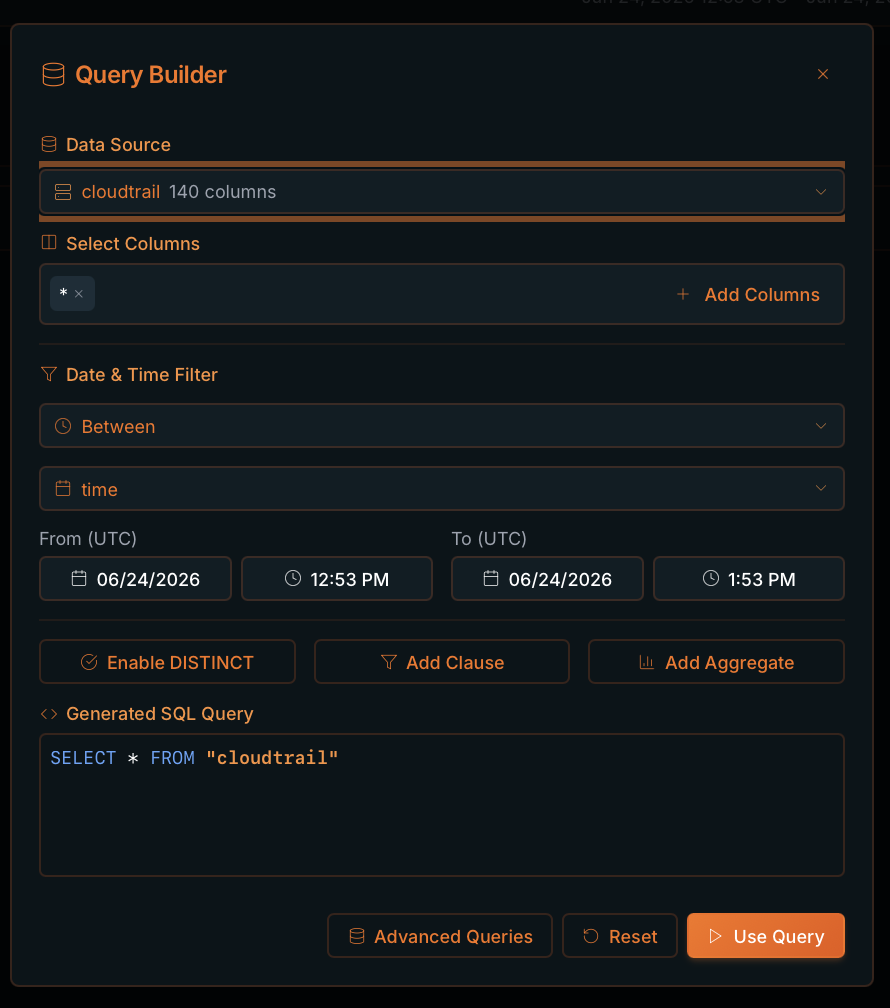
Query Builder: all controls and the live generated SQL. - 2
Pick the Data Source (an integration's table).
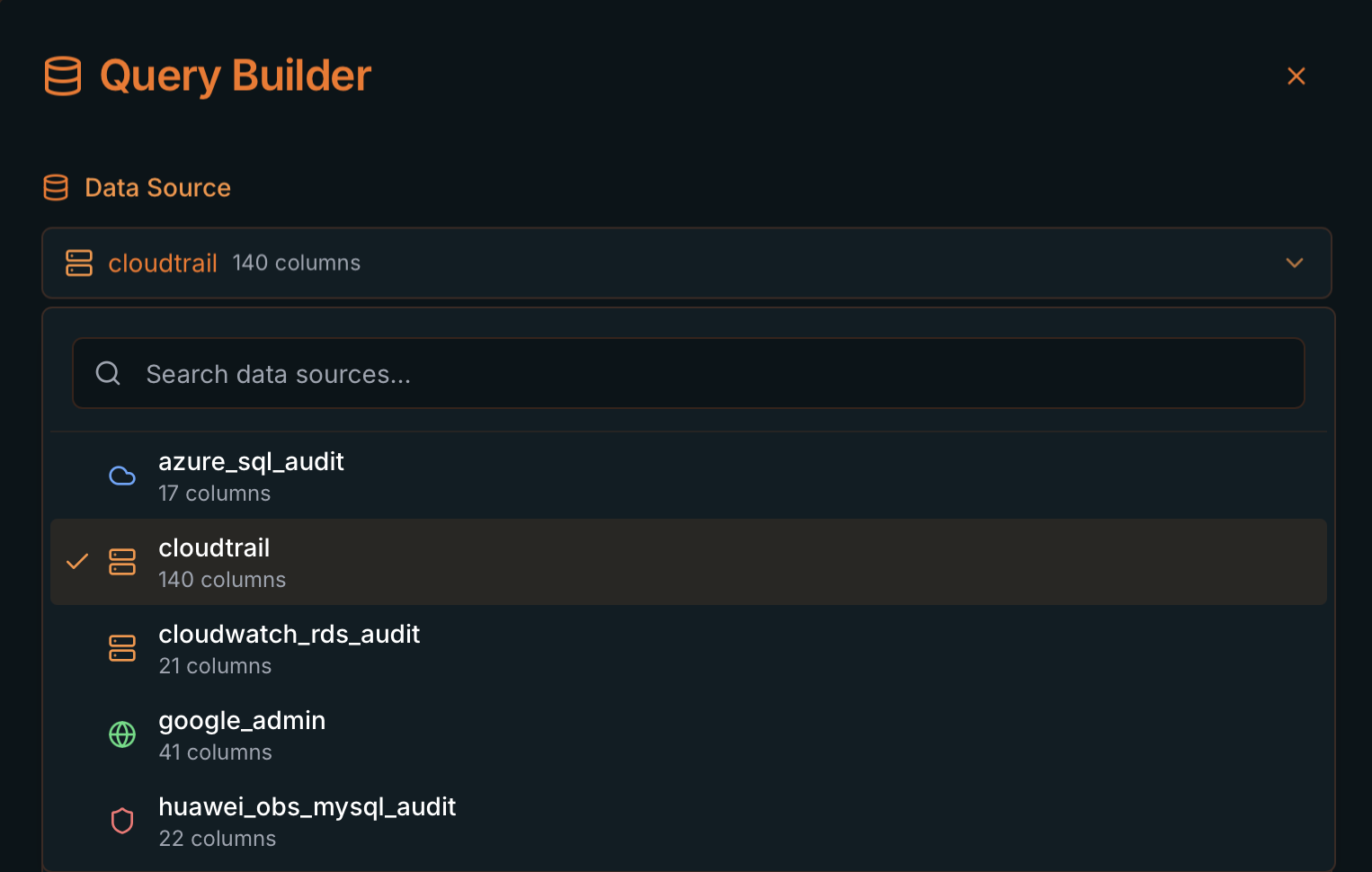
Data Source: pick the table; the counter shows how many columns it has. - 3
In Select Columns, choose specific columns or leave
*for all.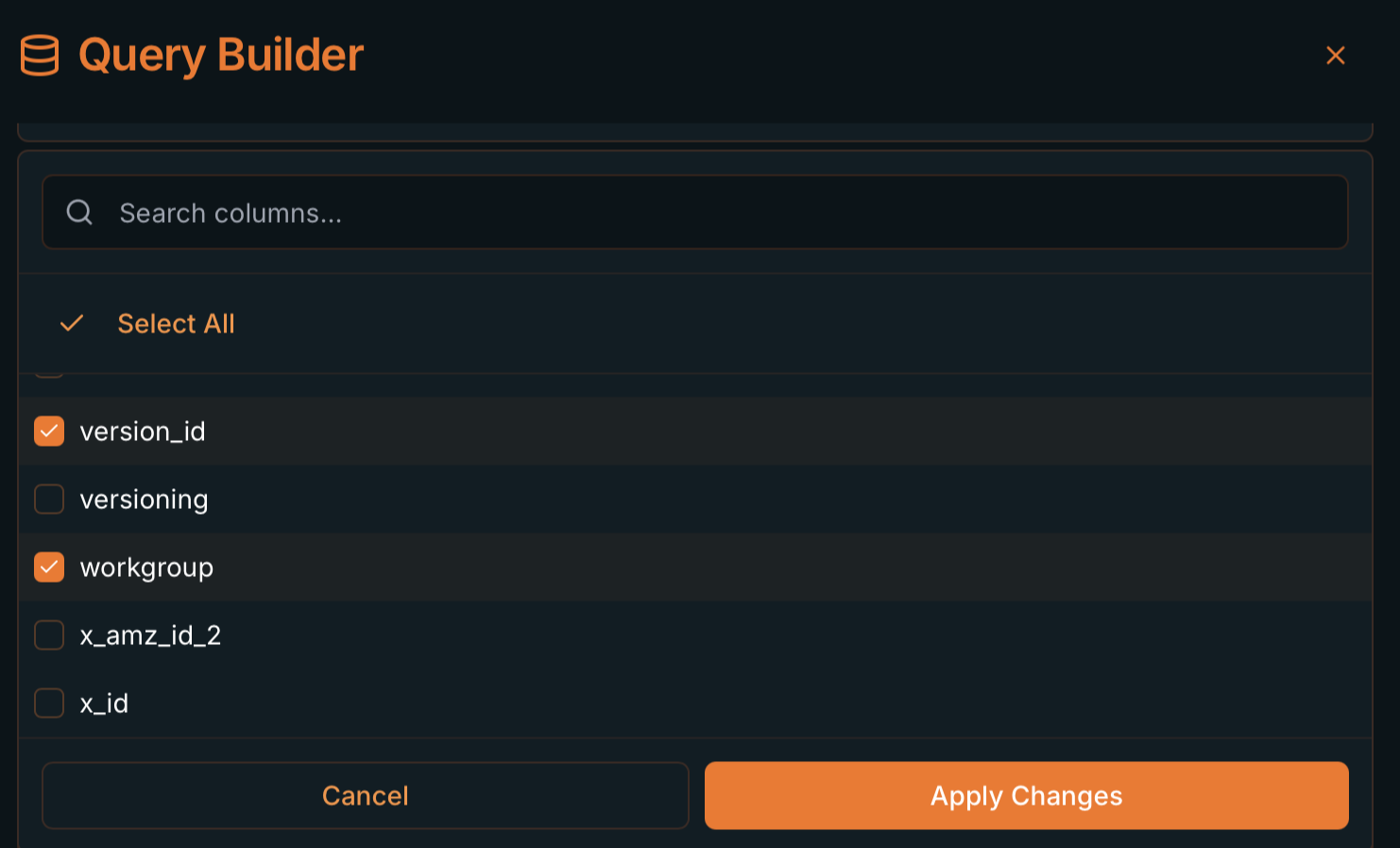
Select Columns: search, check, and don't forget Apply Changes. 
Chosen columns appear as chips; remove them with the ×. - 4
(Optional) Configure the Date & Time Filter (
Betweenover thetimecolumn, withFrom/Toin UTC). - 5
(Optional) Enable DISTINCT, Add Clause (WHERE / GROUP BY / ORDER BY / LIMIT) and/or Add Aggregate.
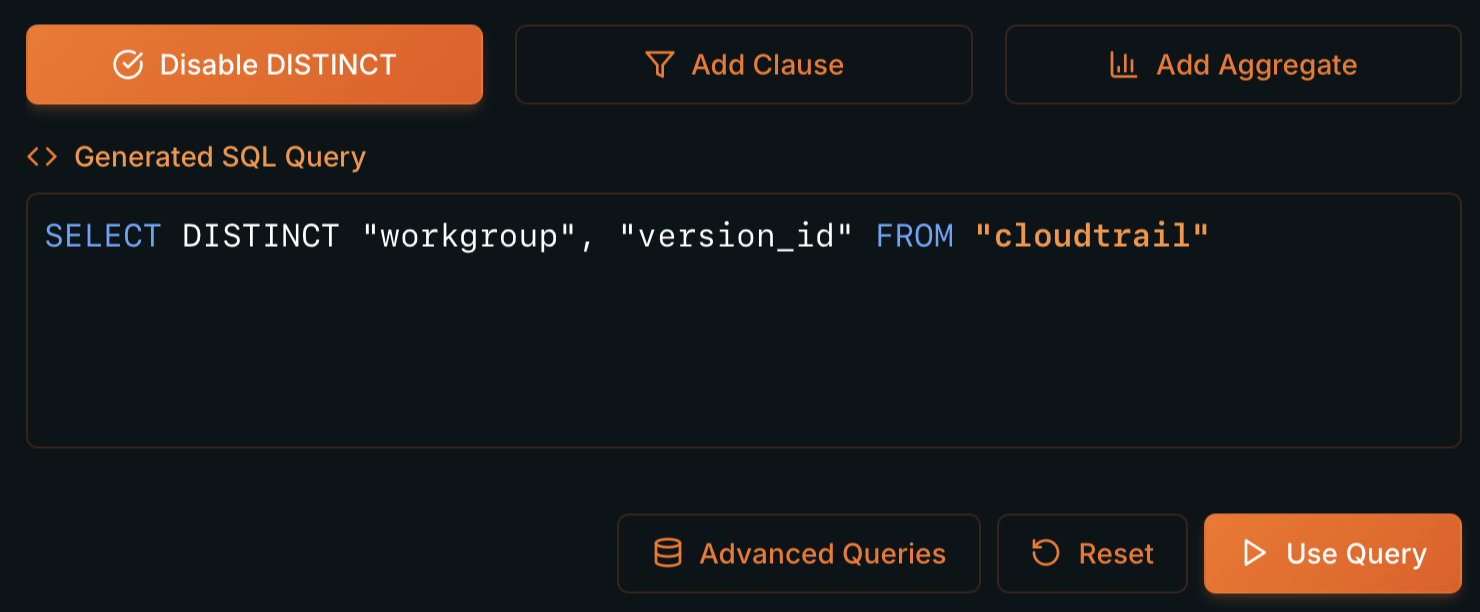
DISTINCT: SELECT DISTINCT "workgroup", "version_id" FROM "cloudtrail".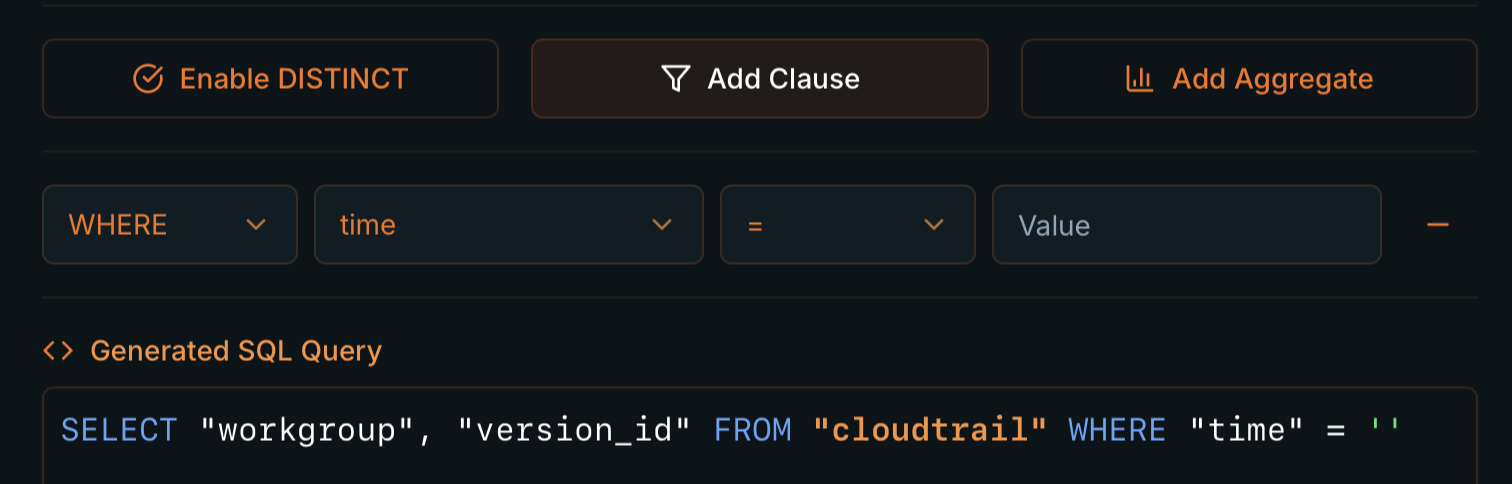
Add Clause: WHEREfilters (column, operator, and value).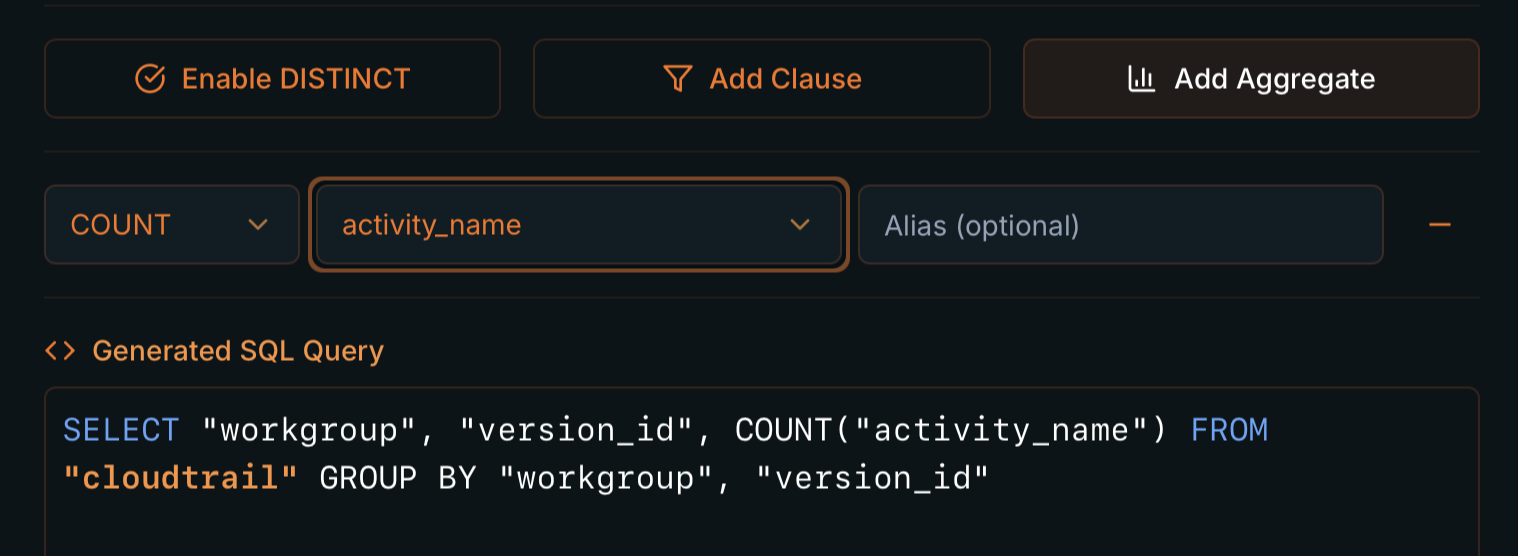
Aggregation: COUNT("activity_name")with its automaticGROUP BY. - 6
Review the Generated SQL Query block (updates automatically).
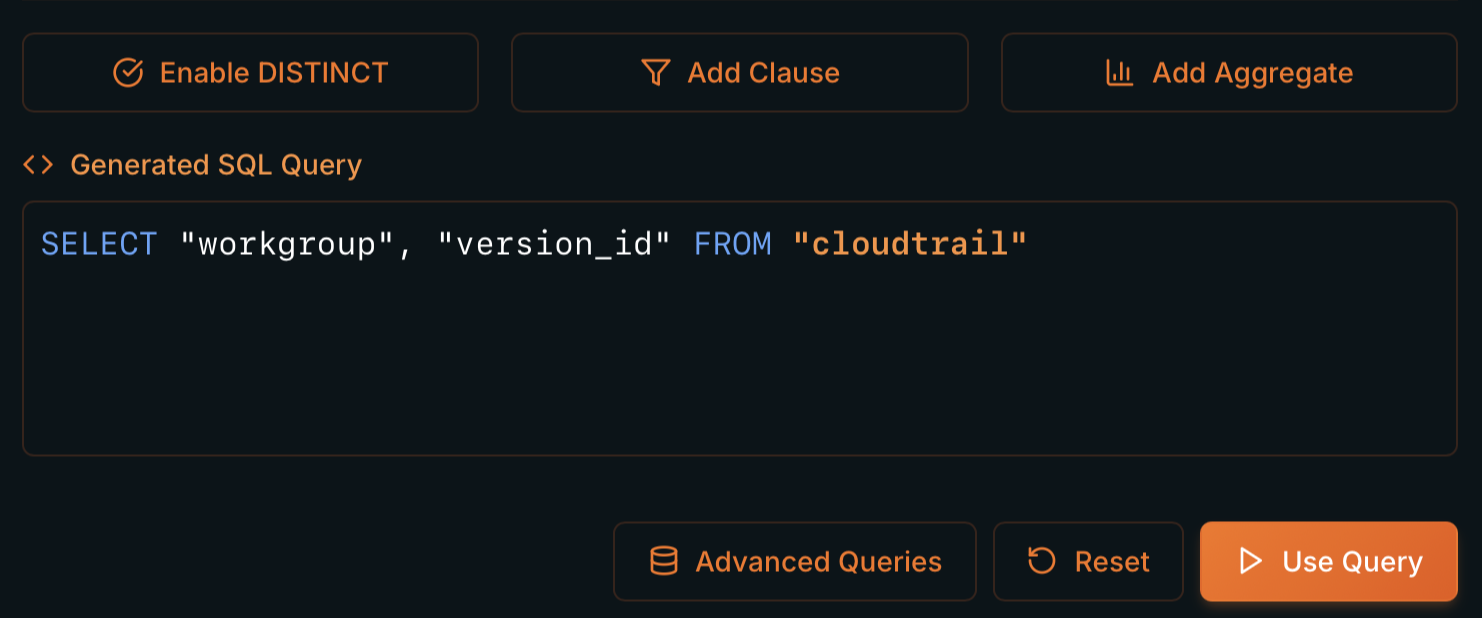
Generated SQL Query: the exact Presto SQL that will run. - 7
Click Use Query to send the SQL to the editor, then Run Query.
Expected result
- The editor is populated with the generated query, ready to run.
- You can keep tweaking the SQL by hand if you need something more advanced.
Tips
- Use the Query Builder to discover the columns of a new source, then refine the SQL by hand.
- The generated SQL is standard Presto: you can copy it, version it, or turn it into a detection rule.
1 · Data Source (the table)
- Each integration exposes a table with its own column set, e.g.
cloudtrail(140 columns),google_admin(41),cloudwatch_rds_audit(21),huawei_obs_mysql_audit(22),azure_sql_audit(17). - Use Search data sources... to find the source and check the column counter to gauge the table's size.
2 · Select Columns
- Add columns as chips (e.g.
workgroup,version_id) with Add Columns, or leave*to return all. - The picker has Search columns... and Select All for sources with many columns.
3 · Date & Time Filter
- Type
Betweenover thetimecolumn, withFrom (UTC)andTo (UTC). - Equivalent to a
WHERE "time" >= ... AND "time" <= ...in the generated SQL.
4 · DISTINCT, clauses, and aggregations
- Enable DISTINCT → generates
SELECT DISTINCT ...(removes duplicates). - Add Clause →
WHERE(operators=,!=,>,<,>=,<=,LIKE,IN,NOT IN,IS NULL,IS NOT NULL),GROUP BY,ORDER BY(ASC/DESC),LIMIT. - Add Aggregate →
COUNT,SUM,AVG,MIN,MAXover a column, with an optional Alias. Generates the matchingGROUP BY.
5 · Generated SQL Query and actions
- Generated SQL Query shows the exact Presto SQL that will run.
- Use Query sends that SQL to the editor; Reset clears the builder; Advanced Queries opens IP Address search (see below).
Advanced Queries — IP search
- Advanced Queries no longer includes lookup tables — those are managed in Management → Lookup Tables and inserted with Lists in the editor.
- Today Advanced Queries offers only IP Address Search Configuration:
- IP Address / Text Input — paste IPs or text; Grep IPs extracts IPv4 addresses and generates the query.
- Search Mode —
comprehensive(all relevant IP columns) orselective(pick columns per table). - Search Tables — badges to include/exclude tables with IP fields.
- Generated SQL Query — editable preview; confirm with Apply Query.